If you’ve ever tried using a barcode generator Excel setup, you already know the struggle.
Yes, Excel can generate and store barcodes.
Yes, you can use a barcode scanner to Excel workflow.
But once your data grows… things get messy fast.
- Manual edits become confusing
- No tracking of changes
- Hard to manage real-time updates
That’s why many users start looking for a better way to combine barcode scanner and Excel workflows.
Why Excel Alone Isn’t Enough for Barcode Management
Using Excel for barcode generation in Excel works fine—at first.
But here’s what usually happens:
- You create scannable barcodes in Excel
- You start scanning data into rows
- Then… multiple edits happen
Suddenly:
- You don’t know who changed what
- Data becomes inconsistent
- Tracking becomes manual and time-consuming
A basic barcode reader Excel workflow simply wasn’t designed for real-world operations.
The Modern Workflow: Barcode Scanner Software + Excel Integration
Instead of forcing Excel to do everything, smart users combine:
👉 Mobile barcode scanning
👉 Structured data input
👉 Excel import/export
That’s where FlexiScan comes in.
Meet FlexiScan: Barcode Scanner That Works With Excel
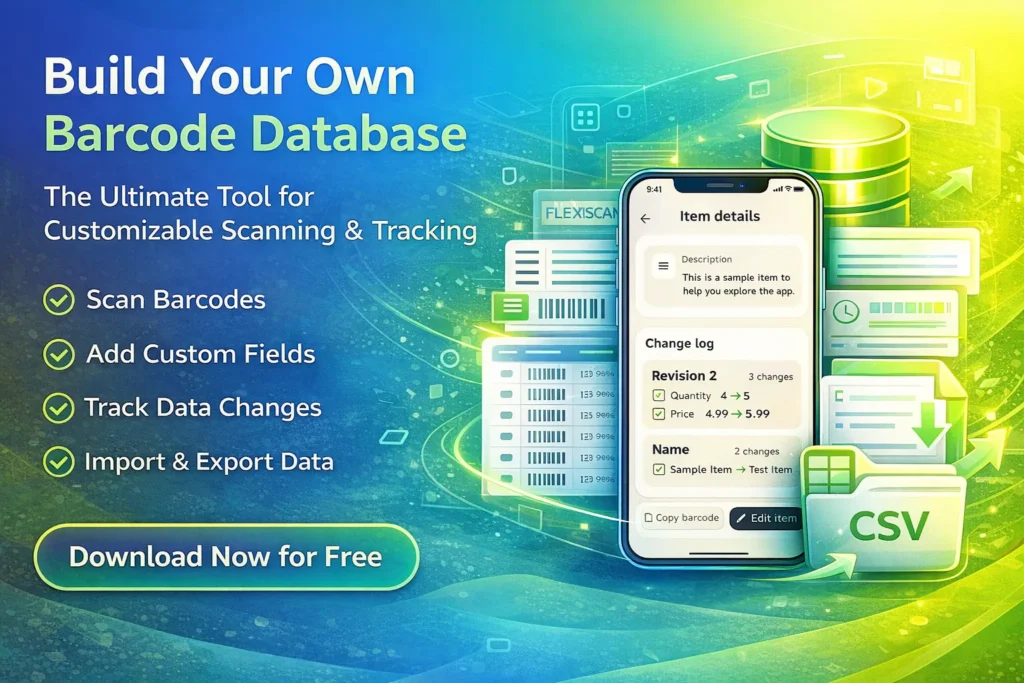
FlexiScan is not just another barcode scanner software Excel users try to connect manually.
It’s designed to work with Excel—not against it.
🔹 Import Excel → Start Scanning Instantly
Already have a file?
- Import your Excel / CSV
- Use existing barcodes
- Continue working without rebuilding data
Perfect for migrating your current system.
Scan Barcodes → Auto Fill Data
Use FlexiScan as your barcode scanner to Excel bridge.
- Scan items
- Update records instantly
- No manual typing
🔹 Edit Excel Data From Your Phone
This is where FlexiScan stands out.
Instead of:
❌ Editing spreadsheets manually
❌ Risking broken formulas
You can:
✔ Update data directly inside the app
✔ Keep structure clean
✔ Avoid human error
🔹 Export Back to Excel Anytime
Need your file again?
- Export to Excel / CSV
- Open in Excel, Google Sheets, or ERP
- Fully compatible
Your workflow stays flexible.
Full History Tracking (Excel Can’t Do This Easily)
Excel doesn’t track detailed changes by default.
FlexiScan does.
- See every edit
- Track timestamps
- Know exactly what changed
This is critical for:
- Inventory tracking
- Asset management
- Team collaboration
How to Use Barcode Scanner and Excel Together (Better Way)
Here’s the optimized workflow:
1. Prepare Your Excel File
Create your structure:
- Barcode
- Product Name
- Stock
- Location
2. Import Into FlexiScan
No need to rebuild anything.
Just import and continue working.
3. Scan and Update Data
Use the app as your barcode reader Excel companion.
- Scan items
- Update stock
- Add notes
4. Export When Needed
Push everything back to Excel.
Clean, structured, and ready.
Use Cases for Scanning Barcodes in Excel
This workflow is ideal for:
- Warehouse inventory
- Retail stock management
- Asset tracking (IT, office equipment)
- Small business operations
- eCommerce sellers
If you rely on scannable barcode in Excel, this upgrade will save hours.
The Problem With Traditional Barcode Generator on Excel
Let’s be clear:
Excel is great for data storage.
But it’s NOT built for:
- Real-time scanning
- Mobile updates
- Data history tracking
Trying to force Excel into a full system leads to:
- Errors
- Lost data
- Slower workflows
The Better Alternative: Excel + FlexiScan
Instead of replacing Excel, FlexiScan enhances it.
👉 Excel = storage & reporting
👉 FlexiScan = scanning & real-time data
Together, they create a powerful system.
🚀 Ready to Upgrade Your Barcode Workflow?
Stop struggling with outdated barcode generator Excel setups.
Start using a smarter system that lets you:
- Scan faster
- Edit easier
- Track everything
👉 Download FlexiScan now
✔ Import Excel files
✔ Scan barcodes instantly
✔ Export back anytime
✔ Full history tracking
✔ 100% free
Explore another article